Apps, API & Webhooks
Turn on Public API v1 with permission-scoped API keys, receive and send signed webhooks, and install or build apps (plugins) that run inside Deplao.
One page that gathers every way of opening Deplao up to the outside world: install Apps that run right inside Deplao; let your website, sales software, n8n… read data and send messages through the API; and receive and send data with webhooks.
This page covers what you do in the app. The full technical documentation (authentication, endpoint list, events, webhooks, the app SDK) is in the Developer docs: start with the Quickstart.
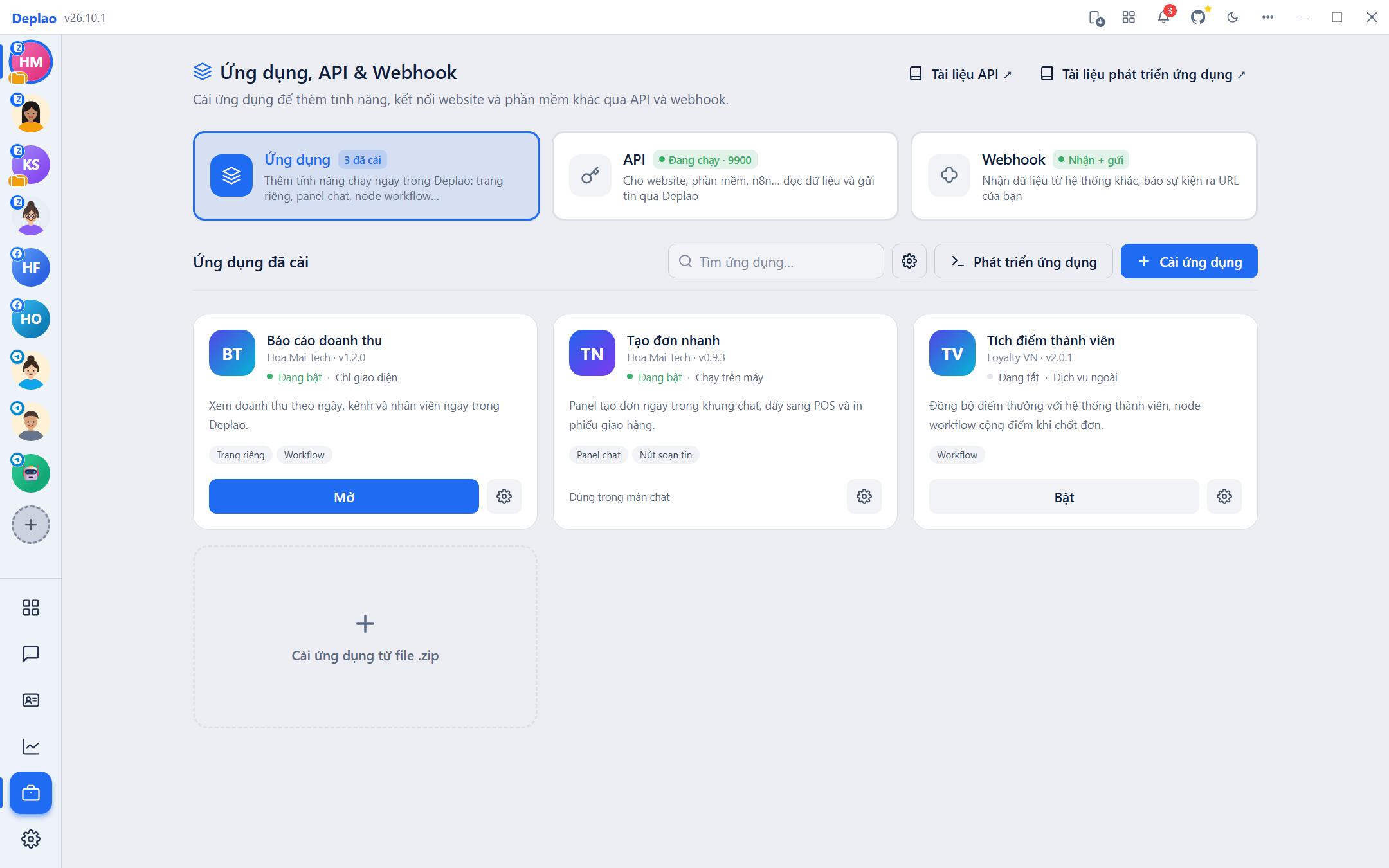
- Where: left sidebar → Tools → Apps, API & Webhooks (Công cụ → Ứng dụng, API & Webhook), or find it in the All features panel. Only on the host machine; employee machines don't run the API.
- Three tabs: Apps (Ứng dụng; install, open and manage apps) · API (server, API keys, logs, advanced) · Webhook (receive data, send events out).
- The API docs (Tài liệu API) and App development docs (Tài liệu phát triển ứng dụng) buttons at the top of the page open the documentation in your browser (the API server starts automatically if it's off).
Public API v1
The API is the "door" that lets other software work with Deplao the way a user would: read conversations, send messages, update customers, run workflows… Each system uses its own API key (like a password) together with a list of permissions (scopes) that say what the key may do.
- Nearly 300 operations: accounts, Zalo / Facebook / Telegram chat, groups, labels, contacts, CRM, workflows, integrations, ERP, AI, reports, media, employees.
- Runs right on the computer where Deplao is installed, on default port
9900(the same server as employee connections). Off by default until you turn it on; every call requires an API key you create. - Follows the app's normal flow: messages sent through the API still show up in the chat, are stored, and trigger workflows just as if you'd sent them yourself.
- Send the key in the
Authorization: Bearer dpk_…header (orX-Api-Key).
Turning on the API and creating an API key
- Turn on the server: API tab → Overview (Tổng quan) → the API server section → Turn on server (Bật server). On a machine that runs bots / workers 24/7, also turn on "Start the server when the app opens" (Tự bật server khi mở app).
- Create an API key: API key tab → Create API key (Tạo API key): give it a name (e.g. Website, n8n), choose its Permissions (Quyền; quick presets Read-only · Chat bot · CRM sync · Full access, or tick individual permissions), Allowed accounts (Tài khoản được dùng), Allowed IPs (IP được phép; an IP or CIDR range, empty = any IP) and Expiry (Hết hạn; 30 days, 90 days, 1 year or never). Optional: a requests-per-minute limit (0 = unlimited), an ERP role, a note.
- Copy the key right away: the
dpk_…key is shown only once, copy it and keep it somewhere safe. If you lose it, revoke it and create a new one. - Try a call: run the command below (replace
dpk_xxxwith your key); if you get back the list of accounts, the key works. - Read the docs: click Open API docs (Mở tài liệu API), the
http://127.0.0.1:9900/docspage has guides, the endpoint list, a try-it button and curl commands. The/api/v1/openapi.jsonfile imports straight into Postman / Insomnia or can be used to generate SDKs.
curl -H "Authorization: Bearer dpk_xxx" http://127.0.0.1:9900/api/v1/accountsWhere can you call the API from?
- On this computer:
http://127.0.0.1:9900/api/v1 - On the LAN:
http://<host IP>:9900/api/v1, the Overview tab shows the address ready to copy. - From the Internet (servers, n8n, Make… outside your network): turn on the Employees & API (Nhân viên và API) service in Settings → Internet & Cloud → Internet address (Cài đặt → Internet & Đám mây → Địa chỉ Internet), then call
<address>/api/v1. The "Remote access" section on the Overview tab just shows this address for copying; it's also the address remote employees use. See Internet & Cloud. - The temporary address changes on every restart; for long-running integrations, use a fixed address (Cloudflare automatic).
The API and webhooks run inside Deplao on the host machine: if Deplao or the computer is turned off, the API and both incoming and outgoing webhooks stop until it's opened again.
Logs, monitoring & real-time events
- Logs: the last 200 requests, filterable by key, who called (key, employee or app), endpoint, result, processing time, IP. Request bodies aren't stored; logs are kept for 7 days by default.
- 24-hour stats for each key on the API key tab; the Overview tab has a Monitoring section for the last 5 minutes (requests per minute, errors, real-time connections, temporarily blocked IPs).
- Real-time events (new messages, friend requests, payments…) for keys with the event permission: Socket.IO for apps / workers that keep a long-lived connection, SSE for scripts and servers, polling for cron jobs, serverless and Google Apps Script. Details: Events.
- Systems that lose their connection can still catch up on missed events: kept for 7 days by default, up to 50,000 events.
- Advanced (Nâng cao) tab: limits you set yourself (no request limit by default), maximum body / file size, number of operations running in parallel, how long logs and events are kept, and security options.
Webhooks: receiving data, sending events
Receiving data: other systems → Deplao
Casso and SePay send bank transfers, and KiotViet / Haravan / Sapo / Nhanh.vn / Pancake POS send orders (authenticated with the webhook key set on the integration page) to <address>/webhook/<type>; websites, Zapier, Make… trigger workflows that use the "External webhook" trigger via <address>/api/workflow/webhook/<token>. You need to turn on the "Payments & integrations" / "Workflow webhook" addresses in Settings → Internet & Cloud; not needed if you only use them on the LAN. See also POS integration and Payment integration.
Sending events out: Deplao → your URL
Click Add webhook (Thêm webhook): name, receiving URL (https://, or http:// on the local network), choose the events (or All events) and accounts → Create webhook (Tạo webhook). The secret is shown only once: use it to verify signatures.
- Every delivery carries an
X-Deplao-Signaturesignature (HMAC SHA-256 made with the secret) so your server can be sure the data came from Deplao; how to verify it is explained under the Webhook docs button and on the Webhooks page of the developer docs. - Failed deliveries are retried automatically after 30 seconds, 2 minutes, 10 minutes, 1 hour and 6 hours; after 100 consecutive failures the webhook turns itself off: fix the receiving server, then turn it back on.
- Send test (Gửi thử), Delivery history (Lịch sử gửi; succeeded / failed / waiting to retry) and Resend (Gửi lại) for individual deliveries.
- Outgoing webhooks keep running when the API server is off; they only stop when you turn off the "Allow API calls" (Cho phép gọi API) switch. Webhooks registered by an API key or an app also show up here so you can manage them.
Apps: add features right inside Deplao
Apps are extensions made by a vendor or by you, ready to use inside Deplao as soon as they're installed. (In the technical documentation, apps are called plugins.)
| What an app can add | Where |
|---|---|
| Its own page | Open it with the Open button on the app's tile, or from the All features panel |
| A panel in the chat screen | Click the app's icon on the conversation's title bar |
| Buttons in the composer | Adds action buttons right in the chat composer |
| Its own settings | Click the app's tile → Settings tab; secret fields are stored encrypted |
| Workflow nodes | Drag them into a workflow on the Workflow page |
| Scheduled jobs | Background work on a schedule set by the app |
Apps can also expose their own API for outside systems, at /api/v1/plugins/<app id>/… (see the app's details → the API for external systems section).
Three kinds of apps:
- UI only: just an interface running inside Deplao, with no background code.
- Runs on this computer: has a background part running on this machine, in its own process separate from Deplao.
- External service: the processing runs on the vendor's server; Deplao calls it over signed HTTPS.
Installing and managing apps
- Install an app: Apps tab → Install app (Cài ứng dụng) → choose the
.zipfile the vendor sent you. For an app under development in a folder, use Develop apps (Phát triển ứng dụng) → Add development folder (Thêm thư mục đang phát triển). - Review permissions: the install screen shows the app type, the permissions it asks for (risky ones highlighted in red), a warning if it runs code on your computer, and its README. Choose the Accounts the app may use (Tài khoản ứng dụng được dùng; all or a few), then click Install and enable (Cài và bật).
- Use and manage: click Open (Mở) to go to the app's page. Click the app's tile for details: About (where it appears in Deplao, what it's allowed to do, which accounts), Settings, Logs, the on / off switch, Reload, Uninstall.
- Update: install a
.zipwith a newer version; new permissions (tagged "new") have to be approved again.
- Apps can only act within the permissions you approved and on the accounts you granted: every call goes through API v1 with the same permission checks, and shows up in the API logs.
- External service apps: on install, Deplao shows an API key and a request-signing secret once, for configuring the app's server.
- An app that fails many times in a row is turned off automatically by Deplao (status "Turned off due to errors"): check its Logs tab, fix the problem, then turn it back on.
- The gear button App-wide limits (Giới hạn chung cho ứng dụng): how many apps can be enabled at once (default 10, background apps use RAM) and requests per minute for each app.
- Uninstalling an app: Deplao asks whether to keep or delete the app's own data (keep it if you might reinstall later). Uninstalling a folder-based app doesn't delete your code folder.
Building your own app (for developers)
An app is a web app (plain HTML/CSS/JS, React, Vue, Svelte…) that talks to Deplao through deplao.*; for background processing, add a Node backend that runs on the computer or let your own server handle it. The Develop apps button opens a drawer with guides, docs and an SDK quick reference.
- Scaffold the app: the
createcommand, with theweb(UI only),local(background on this computer) orremote(your own server) runtime. - Try it in Deplao: Add development folder and choose the folder containing
deplao-plugin.json; after changing the code, click Reload in the app's details. - Validate: the
validatecommand reports manifest errors and lists the permissions the app asks for. - Package: the
packcommand creates a.zipfile that customers install from the Apps tab.
node packages/plugin-cli/bin/deplao-plugin.js create my-app --runtime web
node packages/plugin-cli/bin/deplao-plugin.js validate my-app
node packages/plugin-cli/bin/deplao-plugin.js pack my-app --out my-app.zip- The toolkit lives in the
packages/folder of the Deplao source code: the@deplao/plugin-sdkSDK and thedeplao-pluginCLI (runs on Node.js). Sample apps are inexamples/plugins. - Apps talk to Deplao through API v1 itself: SDK function names match the operation names (operationId) in the API docs.
- Scripts, CSS and fonts from CDNs are blocked for security: build static files and package them with the app.
Detailed developer guide: Apps (plugins) in the developer docs.
Staying safe when opening Deplao up
- Treat API keys like passwords: don't send them over chat or put them on a public website. Use one key per system, grant only the permissions and accounts it needs, set allowed IPs if the calling server has a fixed IP, and set an expiry.
- The admin permission (Full access) also covers managing employees and settings: only grant it to systems you trust completely.
- Revoke keys you no longer use (API key tab → Revoke). If you suspect a key has leaked: Overview tab → Emergency → Revoke all API keys (Thu hồi tất cả API key), then create new ones; the Allow API calls switch blocks the whole API immediately (returning error 503) without affecting employees.
- IPs that keep trying wrong keys (20 times per minute) are blocked for 10 minutes; valid keys aren't affected.
- Keep webhook secrets private, always verify signatures and use
httpsURLs. - Only install apps from sources you trust and read their permissions carefully before clicking Install: apps that run on your computer execute code on your machine. Turn off or uninstall apps you no longer use.
- Only turn on the Internet address when you need calls from outside. By default anyone can view the docs page (it only describes endpoints, with no data); to require a key for remote viewing, turn off "Public docs" (Tài liệu công khai) on the Advanced tab.
Didn't find your answer?
Message us on Telegram