Task management (ERP)
Assign tasks on a Kanban board, keep a work calendar, internal notes, attendance, leave requests and operations reports shared by the Boss and employees.
Assign work, keep a work calendar, internal notes, HR (attendance, leave) and operations reports right inside Deplao, shared between the Boss and employees. Open it from Tools → Task management (Công cụ → Quản lý công việc) in the left sidebar, or find it under All features (Tất cả tính năng) on the title bar.
Sections: Mine · Tasks · Calendar · Notes · HR · Reports (Của tôi · Task · Lịch · Note · Nhân sự · Báo cáo).
Employees only see this section once the ERP module is turned on for them in Settings → Employees (Cài đặt → Nhân viên; see Employees & Workspaces); changes to tasks, calendars, notes, attendance and leave sync instantly between the Boss and employees.
Mine: your to-do list
- An overview of your work for a time range: Today, Yesterday, Last 7 / 14 days, Last month, or custom dates.
- Counters for To do, In progress, Done, Overdue (Cần làm, Đang làm, Đã hoàn thành, Quá hạn); the Boss / managers also see "Awaiting review" (Chờ xem xét), employees see "Events in this period" (Sự kiện trong kỳ).
- The list of tasks in the period (overdue tasks first), My calendar (Lịch của tôi) with an "Add event" button, and a Priority (Ưu tiên xử lý) box for overdue work.
Tasks & assignments
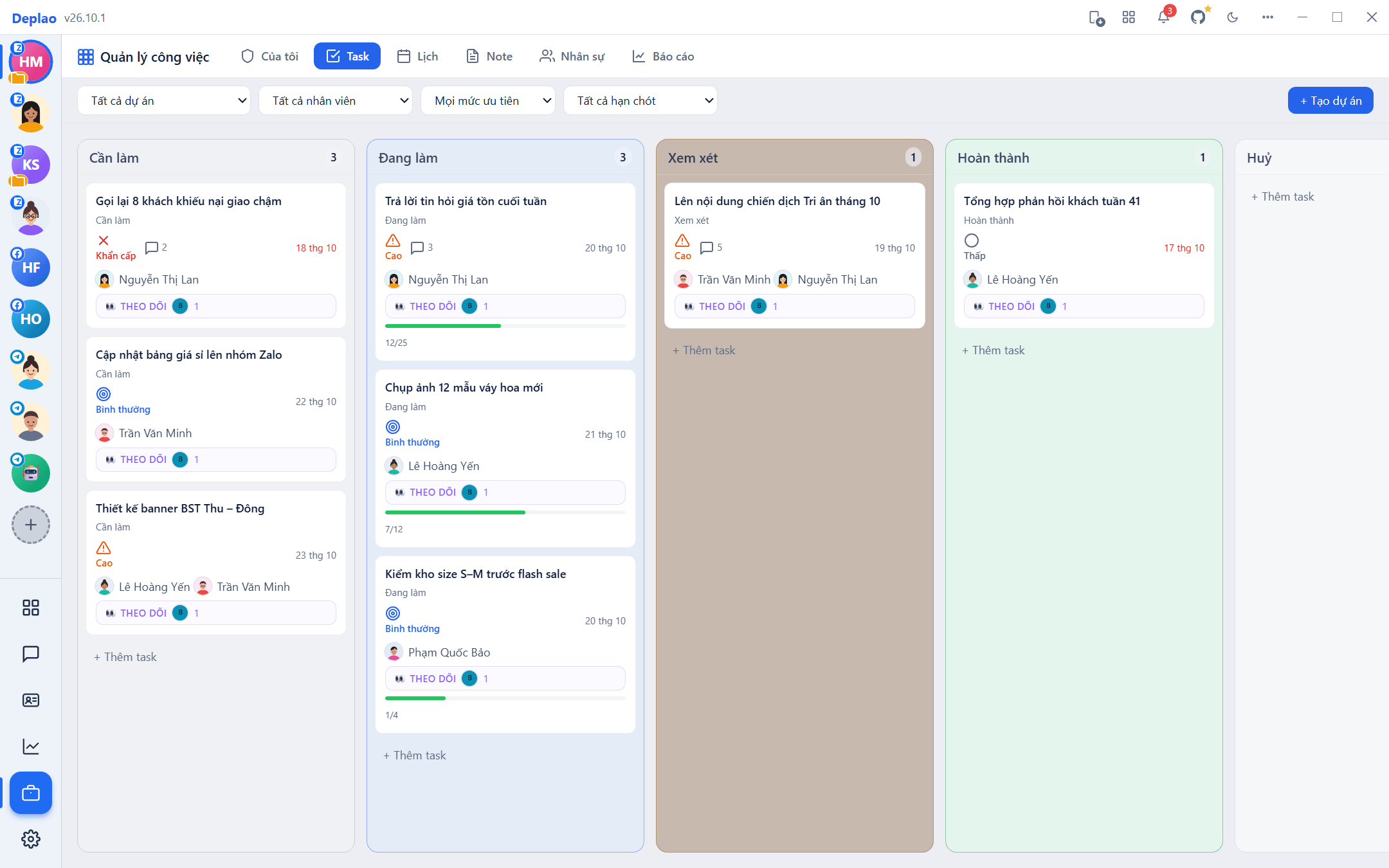
- 5-column Kanban board: To do → In progress → Review → Done → Cancelled (Cần làm → Đang làm → Xem xét → Hoàn thành → Huỷ). Drag cards to change their status (moving one to Cancelled asks for confirmation).
- + Add task (+ Thêm task) at the bottom of each column; + Create project (+ Tạo dự án) to group tasks by project.
- Filter by project, assignee (including the Boss), priority (Low / Normal / High / Urgent) and due date; click "Clear filters" (Xóa lọc) to reset.
- Open a task to edit its project, status, priority, due date, Assignee (Người thực hiện), Followers (Người theo dõi), content (headings, lists, text color, inline images) and attachments → Save task (Lưu task).
- Assignees get a notification; task cards on the board show the assignee's and followers' photos.
Work calendar
- Week / Month / List views, with a "Today" button, a month picker and jump-to-date.
- + Event (+ Sự kiện) or double-click a day to create one quickly (default 9:00–10:00): title, start time, end time (optional), location, notes.
- Click an event to view, Edit or Delete it; days with many events show "See more".
- Chatting with a customer? The + button next to the conversation search box → Add appointment (Thêm lịch hẹn; Appointment / Meeting / Reminder, optionally linked to the open conversation) or Quick note (Ghi chú nhanh): saved straight into Task management.
Notes: internal notes & documents
- Organize notes in folders (create, rename, delete: notes in a deleted folder move back to the root) and find them quickly with the "Find note..." box.
- Write in Markdown and switch between Preview / Edit; content saves automatically as you type.
- Notes are Private by default. The Share button: "Whole workspace" (everyone can view) or "Custom" per person with View / Edit rights; people you share with get a notification.
- Version history lets you view and restore earlier versions of a note.
HR: profiles, attendance, leave
- HR (Nhân sự): the staff list with department, position, phone number and an "Org chart by role". Login accounts are the same as in Settings → Employees; the ERP only adds an internal profile (department, position, ERP role, phone, email).
- Departments / Positions: lists you can assign to staff profiles quickly.
- Attendance: click Check-in / Check-out every day and review your history; the Boss / managers can also see others, filtering by person, department, position and date range.
- Leave: click "+ New request" (+ Tạo đơn; annual leave, sick leave, unpaid leave, other); requests appear in the Boss's "Pending requests" (Đơn chờ duyệt) to Approve / Reject, and the requester is notified of the outcome.
ERP roles & permissions
The Boss is always the Owner. Employees with the ERP module turned on get the Member role by default; change it in HR → edit the person → "ERP role" (Role ERP).
| Role | Permissions |
|---|---|
| Member | Create / update tasks, take tasks themselves, personal calendar, notes, attendance, leave requests |
| Manager | Everything a Member can do, plus assign work to others, edit / delete any task, create projects, edit profiles and view others' attendance |
| Admin / Owner | Full control: manage departments and positions, delete projects and view the Reports tab |
| Guest | View only |
Need an exception? In a staff profile, the ERP action permissions (Quyền action ERP) section lets you override each permission: Inherit from role / Allow / Deny. Permissions are always checked on the Boss machine.
Notifications & reports
- ERP notification bell on the title bar: task assigned to you, task due soon (within the next hour), overdue tasks (every morning), shared notes, leave request results… with "Mark all read" and "Clear all" buttons.
- Reports tab (Owner / Admin): overdue, unassigned and upcoming tasks, pending leave requests, who hasn't checked in today, who's missing an ERP profile; charts of status, priority, task and calendar trends, and daily attendance.
Employees' chat performance reports (messages sent, response time, hours online) live under Reports → Employees (Báo cáo → Nhân viên): see Reports & analytics.
When is it useful?
- Note down appointments and memos while chatting with a customer, then follow up in the same app.
- The Boss needs to see who's doing what, which tasks are about to be overdue, and who hasn't checked in.
- Teams that want one place for tasks, calendars, documents and HR: chat + CRM + workflows + ERP in a single desktop app.
Didn't find your answer?
Message us on Telegram