Chat & unified inbox
One inbox for every Zalo, Facebook and Telegram account - filters, accent-insensitive search, composing, quick messages, forwarding, pins, labels and media.
The Chat section brings together the conversations of every Zalo, Facebook (Messenger), personal Telegram and Telegram Bot account. To work through several accounts in a single list, turn on merged mode (see Signing in & managing multiple accounts).
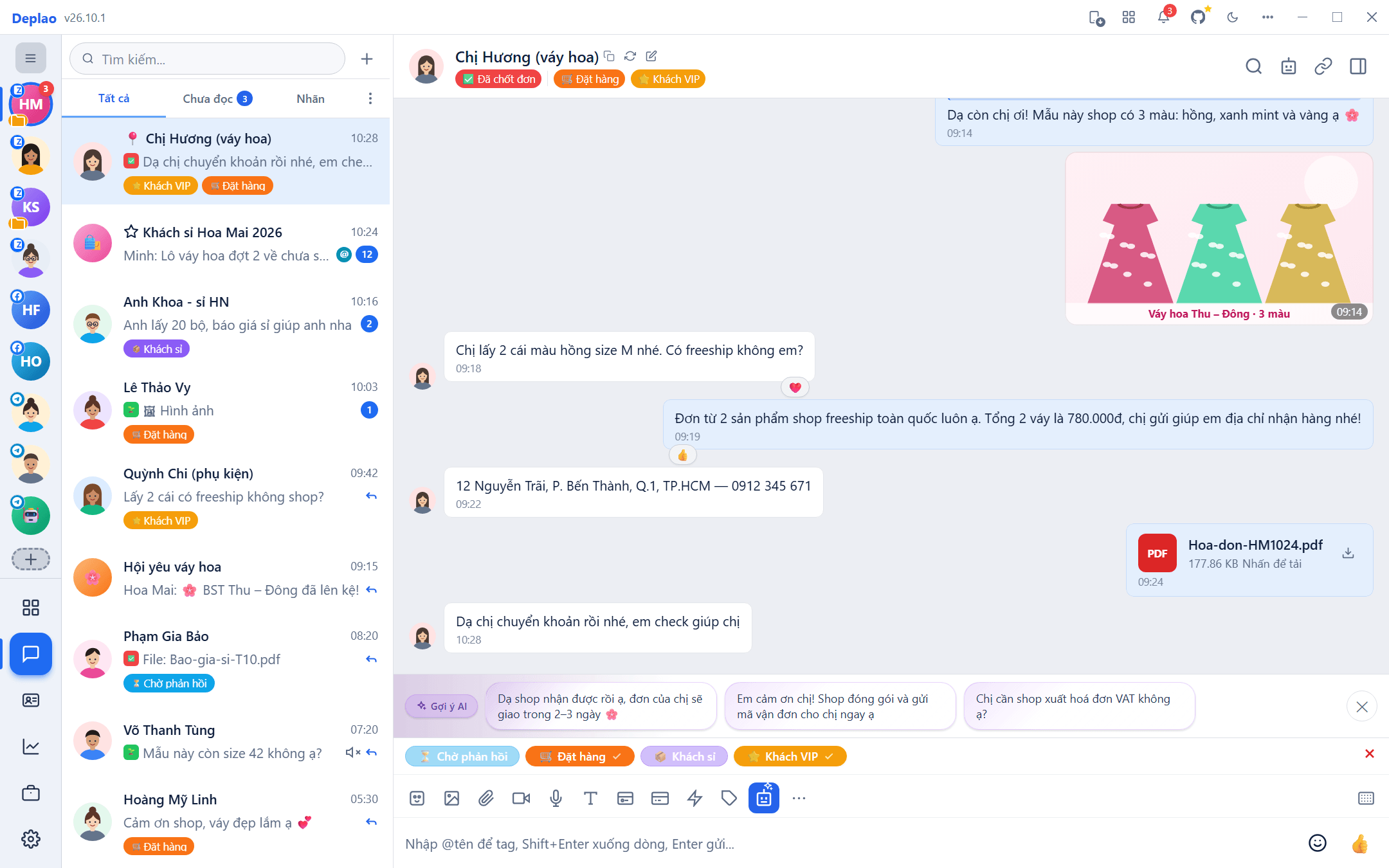
Conversation list
Filters
- All · Unread · Labels (Tất cả · Chưa đọc · Nhãn): Local labels or Zalo labels; when you pick several labels, choose between "All selected labels" (Tất cả nhãn đã chọn) and "Contains any of the labels" (Có chứa 1 trong số nhãn). Clicking All clears every active filter (including those from the ⋮ menu) and returns to the full list.
- The ⋮ menu next to the filters:
- the Other (archive) (Khác (lưu trữ)) folder: less important conversations: no sound, no notifications and not counted as unread; archived Telegram conversations also live here;
- the Unreplied (Chưa trả lời) and By date range (Theo khoảng ngày) filters (pick a From - To range for the last message; combine with other filters);
- Marked messages (Tin đánh dấu), Auto mark as read (Tự động đánh dấu đã đọc), Bulk mark as replied (Đánh dấu đã trả lời hàng loạt);
- filter by Channel (Kênh): Zalo · Facebook · Telegram · Telegram Bot.
- Active filters show up as chips under the filter bar: click ✕ to remove one; clicking Other (archive) / Unreplied again in the menu also removes it.
Replied / Unreplied
The status depends on the last message in the conversation: if it's yours (sent from the app or another device), the conversation is replied (shown with a reply-arrow icon); if it's the customer's, it's unreplied. System notices and OA newsletters don't count. The Unreplied filter only covers 1:1 conversations, whether read or not.
Bulk mark as replied (⋮ menu → Automatic (Tự động)): choose a time range for the last message, preview how many conversations are unreplied, then mark them as replied without sending anything (in the app only). If the customer writes again, the conversation goes back to Unreplied automatically.
Read status on Zalo / Facebook / Telegram
Opening a conversation (clicking it in the list, clicking a notification, the Tab key, Quick chat) marks it as read on the platform. While you're chatting, new messages are marked as read too: as long as the conversation is on screen, the window is open and you've used the mouse or keyboard within the last minute (if you step away, they're marked when you come back). If you're on another page (Overview, CRM, Settings…), new messages stay unread. Telegram bots have no read status.
Auto mark as read (⋮ menu → Automatic): marks unread conversations as read in bulk by the time of their last message (All · Today · Last 7 days · Last 30 days · Older than 7 days · Custom), optionally including Other (archive), and syncs "read" back to Zalo, Facebook and Telegram. Preview the number of conversations, then click Start; it keeps running in the background if you close the popup.
Right-clicking a conversation
- Mark as read / unread (Đánh dấu đã đọc / chưa đọc)
- Mark as replied / unreplied (Đánh dấu đã trả lời / chưa trả lời; 1:1 conversations)
- Mute notifications (Tắt thông báo): for 1 hour · for 4 hours · until 8:00 AM · until turned back on
- Pin (Ghim; synced to Zalo / Telegram) or Pin in app (Ghim trong app)
- Hide conversation with a PIN (Ẩn hội thoại bằng mã PIN; Zalo)
- Move to Other (archive) / Back to main list (Chuyển vào Khác (lưu trữ) / Đưa về danh sách chính)
- Invite to group (Mời vào nhóm)
- Delete conversation (Xóa hội thoại; only deletes it in this app)
The "+" button (Quick actions)
The + button (Thao tác nhanh) next to the search box: pick an account, then create a Zalo / Telegram / Messenger group, join a group by link (with a preview before joining), add a Zalo friend by phone number or add a Telegram contact. The "My work" (Công việc của tôi) section has Add appointment and Quick note (when you have access to Task management).
Pinned conversations always stay at the top of the list; Zalo's My Documents is always first, just like in Zalo.
Searching conversations and messages
- The Search... box (Tìm kiếm...;
Ctrl+K): find contacts by name, nickname or phone number, even without Vietnamese accents (typing "nguyen" finds "Nguyễn", "duc" finds "Đức"). Messages are searched without accents too, and match while you're still typing ("don ha" finds "Đơn hàng"); message search starts at 2 characters. Results are split into All · Contacts · Messages tabs; click a message to open the conversation at that exact spot. - Zalo phone lookup: type a phone number to find the Zalo user, then add them as a friend or message them right away. In merged mode, the app asks which account to look it up with.
- Find a Telegram user: type
@username. - Search within a conversation: the magnifier icon at the top of the chat (
Ctrl+F);Enter/Shift+Enterjump to the next / previous result.
Composing and sending messages
| Feature | How it works |
|---|---|
| Text formatting | Bold, italic, underline, strikethrough, font size, text color (Zalo) |
| Photos and albums | Pick from the library / your computer, paste with Ctrl+V or drag and drop; send several photos at once |
| Videos and files | Pick from the Media library or your computer |
| Voice messages | Click Record voice, click again to stop and send |
| Emoji and stickers | Zalo stickers (with sticker suggestions as you type); Telegram has an Emoji · Sticker · GIF panel |
| Reply | Quote a specific message; Esc removes the quote |
| Mentions (@) | Type @ in a group to pick a member, including @all |
| Polls | Create a poll in a group; Zalo adds a deadline, multiple choice and anonymous voting |
| Notes | Zalo group notes (pinned at the top of the conversation) and internal local notes |
| Reminders (Zalo) | Title, icon, color, time, repeat daily / weekly / monthly |
| Contact cards (Zalo) | Send a contact card; when you type a phone number in the composer, the app offers to attach the card |
| Bank cards (Zalo) | Choose the bank, account number and account holder; save the cards you use often |
- The ⋯ button (More features, Thêm tính năng) on the toolbar: Create poll, Note, Create reminder, Quick integrations (look up orders, products, shipping… see POS integration).
- Shortcuts:
Entersends,Shift+Enteradds a new line,Ctrl+B/Ctrl+I/Ctrl+Uformat text. Click the keyboard icon at the end of the toolbar for the full list (Tabswitches conversation,Ctrl+Ppins in the app,Ctrl+Nadds an internal note…). - If you switch to another conversation mid-message, your draft and quote are kept separately for each conversation.
- Buttons a channel doesn't support are hidden automatically: text formatting, contact cards, bank cards and reminders are Zalo-only; Messenger has no stickers.
- For AI suggestions on the toolbar and the AI Assistant at the top of the chat, see AI Assistant. Installed apps (Tools → Apps, API & Webhooks (Công cụ → Ứng dụng, API & Webhook)) can add buttons to the toolbar and their own panel in the chat: see Apps, API & Webhooks.
Quick messages
Save the messages you send often and type / at the start of the composer to call them up by keyword: no more typing the same text every day.
- Use them: type
/plus a few letters of the keyword or content → pick with ↑ ↓ →EnterorTabto insert. Or click the ⚡ "Quick messages" (Tin nhắn nhanh) button on the toolbar. - With photos / videos: Local templates can send several photos and videos with the text (photos / videos go first, then the text).
- Two modes for Zalo: Local (stored in Deplao, with no limit from Zalo on how many you keep; Zalo) stored on Zalo and usable on your phone too, but may be limited unless you're on a paid Zalo plan. Facebook and Telegram use Local.
- Manage them in one place: Settings → Conversations → Quick messages (Cài đặt → Hội thoại → Tin nhắn nhanh), add / edit / delete, save one template for several accounts at once, and copy quick messages from one account to another.
- When chatting with a bot on Telegram, typing
/shows the bot's command list instead of quick messages.
Message menu and reactions
Right-click a message to open its menu: the items depend on the message type and channel.
- React: click or hold the 👍 button under a message to open the vertical reaction bar (it opens up or down depending on the space available); click your own reaction again to remove it. Zalo and Facebook have the 6 familiar reactions; Telegram offers the conversation's full reaction set (scroll in the bar, or right-click menu → expand button).
- Reply · Forward · Copy, Copy link, Copy image, Open in folder, Save to computer.
- Select messages: select several messages (or click and drag across them) to Copy or Forward them in one go.
- Recall your own messages; group owners / deputies can also delete members' messages. There's also Delete (just for me) and Delete permanently from the app.
- Edit a sent message: available on Telegram. Telegram messages you send also show a "Seen" line telling you who has seen it (in groups) or when it was seen (in private chats).
Forwarding messages
- Right-click a message → Forward (Chuyển tiếp), or select several messages and click Forward.
- In the forward dialog: add an accompanying note, choose the Sending account (Tài khoản gửi), and find recipients by name / phone / ID or through the Recent · Friends · Groups · Labels tabs.
- Select one or more recipients and click Forward (n).
- Zalo: every message type is forwarded faithfully, formatted text, links, contact cards, stickers, voice messages, videos, albums, even photos not yet downloaded.
- Calls, polls, notification cards, OA newsletters and system messages can't be forwarded: the app skips them and tells you.
Zalo: last-seen status, auto-delete, hidden conversations, products
Last-seen status (Zalo 1:1)
Click the avatar at the top of the chat or open the conversation details → "Online", "Last seen 14:05" or "Last-seen status hidden" (as reported by Zalo, checked at most once a minute). The line under the name at the top of the chat repeats the last known status.
Auto-delete messages
- Turn it on from the conversation details or Group management: Off · 1 day · 7 days · 14 days.
- Zalo deletes the messages on everyone's phones and Zalo PC; Deplao keeps the messages on this computer.
- A clock icon appears next to the conversation name and next to the time of messages scheduled for deletion. Messages you send from Deplao into a conversation with auto-delete on (except stickers) are also deleted on Zalo.
- Expired messages show a crossed-out clock and "(auto-deleted on Zalo)": the content is still in Deplao.
Hidden conversations (PIN)
Hidden conversations share the same PIN as the Zalo app.
- Right-click a conversation → Hide conversation (PIN) (Ẩn hội thoại (mã PIN)); the first time, set a 4-digit PIN.
- A red magnifier in the search box means the account has hidden conversations. Type the exact 4-digit PIN in the search box and the list shows only hidden conversations: click the red magnifier or the ✕ on the "Hidden conversations" line to hide them again.
- They hide again automatically when you lock the app, switch accounts or stay idle for 5 minutes. Hidden conversations make no sound, show no notifications and aren't counted as unread.
- Forgot your PIN: Settings → Accounts → Zalo privacy (Cài đặt → Tài khoản → Quyền riêng tư Zalo) → "Forgot your PIN? Reset" (asks twice; if the screen lock is on, re-enter its password). Zalo may delete the messages of hidden conversations on the phone; Deplao keeps them.
- Changed / removed the PIN on your phone: click the red magnifier so Deplao re-reads it from Zalo, if the PIN was removed, the conversations show up normally again.
Sending products (Zalo Business accounts)
The shopping-bag button on the composer → pick a category, then products (several products are sent 2 seconds apart) → sends the product link with its name and price. Click Manage (Quản lý) to add / edit / delete categories and products (up to 5 photos).
Zalo privacy
Settings → Accounts, the Zalo privacy line right under the Zalo account: date of birth, last-seen status, "Seen" receipts, who can message / call you, friend-request sources. The Hidden conversations (Hội thoại ẩn) line below it sets / changes / resets the PIN.
Pinned messages, marked messages and My Documents
Unlimited pins in the app. Zalo only syncs up to 3 pinned messages per conversation. Anything you pin beyond that stays pinned on this computer but isn't synced to Zalo.
- Pin a message: right-click it → Pin message. The pin bar sits at the top of the chat: click it to jump to the original message, click +n to see them all.
- Group board (Bảng tin nhóm; Zalo groups): a button at the top of the chat or in the group info that gathers the group's pinned messages · notes · polls.
- Marked messages: right-click a message → Mark message; find them again in the ⋮ menu → Marked messages (sorted by date, click to open the exact message). Works on every channel; in merged mode it shows the marked messages of all merged accounts.
- My Documents (Zalo, "My Cloud"): the account's own storage conversation, always at the top of the list. Right-click a message → Save to My Documents to keep a copy: viewable on Zalo on both your phone and computer.
Labeling conversations
- Local labels: the row of labels just above the composer, click to add / remove. Show / hide it with the label button on the toolbar or
Ctrl+T. Works on every channel. - Zalo labels: click "Zalo label" (Nhãn Zalo) under the conversation name at the top of the chat to assign one; synced with Zalo.
- Filter by label: the Labels tab in the conversation list. For Zalo labels there's an Update button (fetch the latest labels from Zalo) and Edit labels.
- Manage labels: Settings → Conversations → Manage labels (Cài đặt → Hội thoại → Quản lý nhãn). For how Local and Zalo labels compare, see CRM & customer care.
Date markers, photo gallery and jumping to messages
- Date markers between messages ("Today", "Yesterday", "5 days ago, 12-10"…); as you scroll, a floating date label at the top of the chat tells you which day you're looking at.
- Scroll to the top for older messages: personal Telegram and Facebook load more from the server automatically; older Zalo messages come in through Sync messages from phone (see Syncing old messages).
- Click a photo to open the conversation's photo gallery: ← / → for older / newer photos, zoom in / out, Copy image, Save image, Open in browser.
- Jump to the original message: click the pin bar, a quoted message, a search result or a marked message.
Media and file storage
- Conversation info panel (the button on the right at the top of the chat,
Ctrl+I): shared Photos/Videos · Files · Links, See all, download, open folder. - Media library (Thư viện Media) when you click Send photo / Send file / Send video: folders, Favorites, scope set to one page or All pages, search within the library; "Upload to…" saves files into the library, "Choose from computer" sends them directly; select several files and click Send.
- Zalo only keeps photos / videos on its servers for a limited time: expired files show "Photo expired" / "Video expired" with a Retry download button.
Contact and group info
Click the Conversation info button (on the right at the top of the chat) or press Ctrl+I. The items shown depend on the channel and your role in the group.
- Contacts: edit the nickname (Zalo: synced to Zalo; other channels: stored in the app), phone number, birthday, gender; Mute, Pin, Create group; Groups in common, Block messages and calls, Report, Remove from friends, Delete chat history (only on this device).
- Groups: rename the group, Add members (Telegram channels: Invite subscribers), Group management, Pending join requests (Zalo, for owners / deputies), Topics (Telegram groups with topics), Group board (Zalo), Report, Leave group.
- Zalo group management: member permissions, approval of new members, the group join link.
- Members: the full member list (including members scanned in the CRM / collected from Telegram), accent-insensitive search, Load more members, and a button to reload members from Zalo / Telegram. Role badges: Owner (Trưởng nhóm; Zalo: group owner · Telegram: creator) and Deputy (Phó nhóm; Zalo: deputy · Telegram: admin).
- Owners / deputies click ⋯ next to a member to: View info, Make deputy / Remove deputy, Block from group, Remove from group.
Telegram-only features
- The "+" button next to the search box: New group, New channel (public or private), Join group by link, Add Telegram contact (phone or @username), Contacts (status, messaging), Calls (call log, Missed tab).
- Group / channel management (in the conversation info): description, Private / Public, invite links (copy, create a new link), post signatures and discussion group (channels), auto-delete, delete group / channel, depending on your permissions.
- Emoji · Sticker · GIF panel (the Sticker · GIF button on the toolbar), synced with your account: added sets, recent, favorites, saved GIFs; search sticker sets / GIFs; click a sticker in the chat to preview and add the whole set.
- Link previews: link cards show the site name, title and description; links with video (TikTok…) play right in the card: muted autoplay, unmute in place. Videos in the chat up to 10 MB download automatically; bigger ones download when you click, then play.
- Full reaction set, synced both ways; groups with topics show their Topics list; when chatting with a bot, type
/to see its commands.
Limitations to keep in mind
No voice or video calls in Deplao yet. Zalo and Messenger calls aren't supported. For Telegram, Deplao only shows the call log and alerts you to incoming calls (so you can decline or open the conversation): answer on your phone or in Telegram Desktop.
- Zalo pins: only up to 3 pinned messages per conversation are synced to Zalo.
- Facebook: older messages in end-to-end encrypted conversations can't be loaded (Facebook doesn't let a new device read them), you only get messages received while Deplao is running.
- Zalo: older photos / videos may have expired on Zalo's servers and can't be viewed again.
- Telegram bots: no "read" status, and Telegram doesn't let bots reload old chat history.
- Delete conversation / Delete chat history in Deplao only deletes on this computer, not on Zalo, Facebook or Telegram.
Didn't find your answer?
Message us on Telegram