Dashboard
The Dashboard shows every Zalo, Facebook and Telegram account as a card with its connection status, quick actions, search, sorting and account removal.
The Dashboard is the first page you see when you open the app (the Dashboard item in the left sidebar). Each Zalo, Facebook, Telegram and Telegram Bot account appears as a card with its connection status and quick actions.
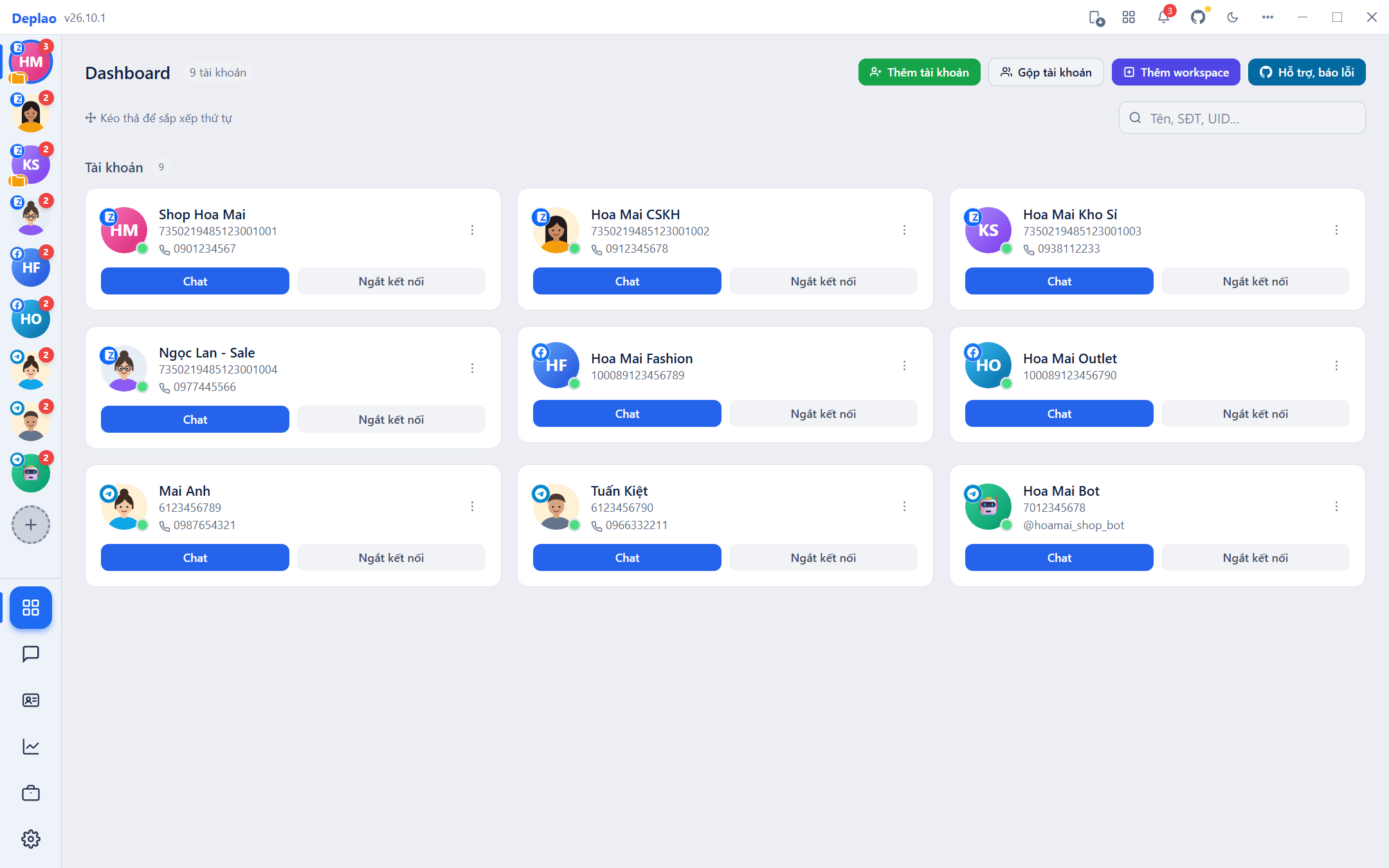
Toolbar, search and sorting
- Toolbar: the number of accounts; the Add account (Thêm tài khoản) button; Merge accounts (Gộp tài khoản; once you have at least 2 accounts); Add workspace (Thêm workspace; opens Settings → Workspace (Cài đặt → Workspace)); Support, report a bug (Hỗ trợ, báo lỗi; opens Deplao's GitHub page).
- Search: the Name, phone, UID... (Tên, SĐT, UID...) box filters the cards by name, phone number or UID.
- Sorting: drag and drop cards to reorder them, the same order is used by the avatar list in the left sidebar (which you can also drag and drop).
To add accounts, merge them or assign proxies, see Signing in & managing multiple accounts.
Account cards & status
| Status dot | Meaning |
|---|---|
| Online (green) | Connected and receiving messages normally |
| Connecting (Đang kết nối; yellow, blinking) | The app is connecting the account |
| Offline (grey) | Disconnected or not connected yet |
| Lost message connection (Mất kết nối nhận tin; red, blinking) | The card has a red border and a warning icon |
- What a card shows: the avatar with the channel icon and status dot, the name, the UID (click to copy), and the phone number or @username.
- Quick buttons: Chat opens the account's conversations; Disconnect (Ngắt kết nối) stops receiving messages (the account goes Offline); Reconnect (Kết nối lại) starts receiving them again.
- ⋮ menu: Update info (Cập nhật thông tin; Zalo: phone number · Facebook: name, photo · Telegram: avatar), Open chat (Mở Chat), Copy UID, Delete account (Xóa tài khoản).
- Lost message connection: the Chat button is temporarily hidden and replaced by Reconnect plus Scan new QR (Quét QR mới; Zalo) or Sign in again (Đăng nhập lại; Facebook, Telegram). Signing back in with the same account keeps your chat data: see Signing in & managing multiple accounts.
Deleting an account
Delete account on the Dashboard removes the account from the app but keeps its messages, conversations and CRM data on your computer (for every channel); to use it again, just sign back in with the same account.
To delete the data as well, use Settings → Accounts → Delete → Delete all data (Cài đặt → Tài khoản → Xóa → Xoá tất cả dữ liệu). This is permanent and cannot be undone.
Exporting data to a file
The Dashboard has no export button. Lists are exported to CSV files (which open in Excel) from these screens:
- CRM → Contacts → Export CSV (CRM → Liên hệ → Xuất CSV): every contact matching the current filters, name, nickname, phone number, UID, type, gender, birthday, time of the last message, number of notes.
- CRM → Groups (CRM → Nhóm): the Export list (Xuất danh sách) button exports the members of the group you're viewing.
- CRM → Campaigns (CRM → Chiến dịch): open a campaign's details → use the button to export the campaign's contact list to CSV.
- Reports → Employees → Export CSV (Báo cáo → Nhân viên → Xuất CSV): work statistics for each employee.
Other situations
- No accounts yet: the Dashboard shows + Add account, Employee sign-in (Đăng nhập dành cho nhân viên; enter the Boss machine's address plus the username and password your manager gave you) and Restore data from the cloud (Khôi phục dữ liệu từ đám mây; on the "Moving from another computer?" line: use it when moving from a machine that had backup turned on).
- Employee machines: employees only see the accounts assigned to them; their cards only have the Chat button (no disconnecting, deleting or drag and drop). With no accounts assigned yet, the Dashboard shows No pages are managed yet (Chưa có trang nào được quản lý): ask the Boss to assign some.
- Boss impersonating an employee (from Settings → Employees (Cài đặt → Nhân viên)): the Dashboard shows a Simulating: employee name (Giả lập: tên nhân viên) label and only the accounts assigned to that person.
- After restoring data from a backup: the Dashboard reports Data restored (Đã khôi phục dữ liệu), campaigns, workflows and schedules are paused so they don't send duplicates alongside the old machine. Only click Turn automation back on (Bật lại tự động hoá) once the old machine is off or Deplao on it has been disconnected; for any channel that needs signing in again, do it on that account's card. See Internet & Cloud.
Didn't find your answer?
Message us on Telegram