Workflow automation
Build automations by drag and drop or with the AI copilot - triggers, conditions, per-channel actions, simulation before enabling, run history and templates.
A workflow is an automation drawn as a drag-and-drop diagram, with no code: a Trigger (Kích hoạt; a message arrives, a scheduled time comes, a webhook is received...) connects to condition, processing and action steps (send a message, add a label, ask AI, write to Google Sheets...). Enabled workflows run in the background whenever their event happens, as long as Deplao is open.
Open them from the sidebar: Tools → Workflow (n8n) (Công cụ → Workflow (n8n)), or the All features (Tất cả tính năng) button → Workflow.
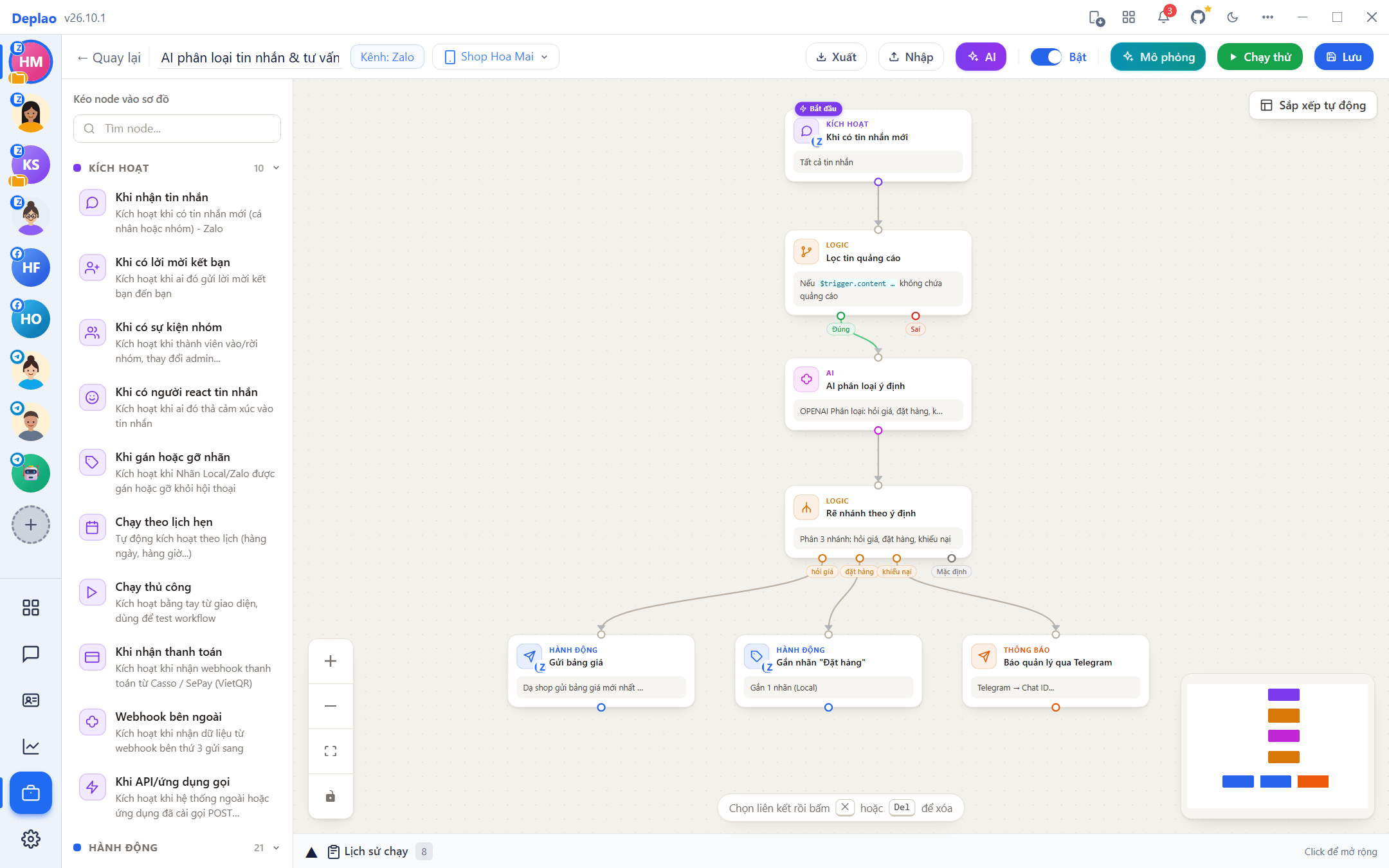
Creating a workflow
- Create the workflow: click Create workflow (Tạo workflow) → choose the channel: Zalo, Facebook, Telegram (Personal) (Telegram (Cá nhân)) or Telegram (Bot). Each workflow works with one channel, and the node palette only shows nodes that fit that channel. You can also start from the Template library (Kho mẫu) or Import JSON (Nhập JSON).
- Choose which accounts it applies to: use the account box on the editor toolbar. Selecting no account = the workflow runs for all accounts of that channel.
- Drag, drop and configure nodes: drag nodes from the palette on the left (it has a Find node... (Tìm node...) box) onto the diagram, connect them with wires, and click a node to open its settings. The Insert variable (Chèn biến) button puts dynamic data into your content: the customer's name, the message text, the result of an earlier step...
- Tidy up the diagram: click Auto-arrange (Sắp xếp tự động) to lay the nodes out along the flow (an Undo (Hoàn tác) button appears for about 10 seconds afterwards). To delete a wire: select it, then click ✕ or press
Del. - Save, test, then enable: click Save (Lưu) → Simulate (Mô phỏng) to see how the workflow behaves without sending real messages → turn on the switch on the workflow's card in the list (or the On/Off (Bật/Tắt) switch in the editor, then Save).
AI copilot: build workflows by describing them
In the editor, click the AI button to open the Workflow design assistant (Trợ lý thiết kế workflow), then describe what you want to automate in everyday words (the copilot takes instructions in Vietnamese). For example: "When a customer asks about prices, have AI answer automatically; when they want to order, add the Order label and notify me".
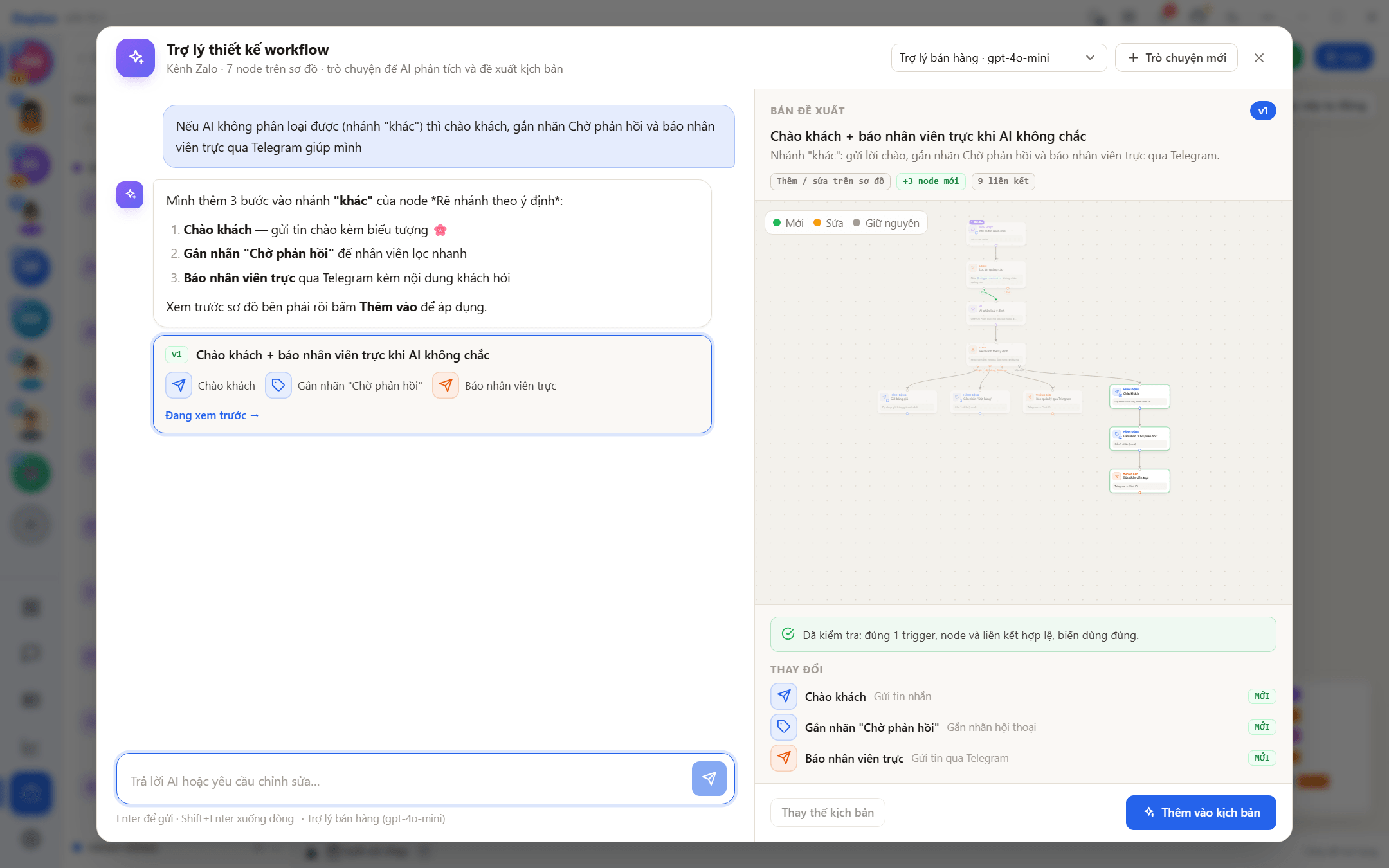
- The AI asks about anything unclear, looks up the available nodes plus your real contacts and Local labels, then produces a proposal (v1, v2...) with a preview of new / changed / unchanged nodes.
- Click Add to workflow (Thêm vào kịch bản), Apply changes (Áp dụng thay đổi) or Replace workflow (Thay thế kịch bản) to put the proposal on the diagram; if the proposal still has errors, click Ask AI to fix (Nhờ AI sửa). After applying, an Undo AI (Hoàn tác AI) button is available for about 30 seconds: remember to click Save.
- You can also ask the AI to explain or review the workflow you have open. The conversation is kept separately for each workflow; click New conversation (Trò chuyện mới) to start over.
- You need at least one enabled AI assistant (Tools → Integrations → AI Assistant (Công cụ → Tích hợp → Trợ lý AI); see AI Assistant). Choose an assistant with a strong model for more accurate proposals.
Simulate and Test run
- Simulate: enter a customer name and a sample message, click Run simulation (Chạy mô phỏng) → see what the workflow replies on a mock phone screen and which branch it takes (View run path (Xem luồng chạy)). It sends no real messages and calls no real API / AI: AI steps only return a sample sentence, and AI classification always returns "other" (khác).
- Simulation runs the saved version: after editing, click Save before simulating.
- Test run (Chạy thử; in the editor or on the card in the list): runs it for real, once, right now, message steps really send. Zalo workflows with a message step ask for the sending account, the test message content and a recipient from your contacts.
- The Manual run (Chạy thủ công) trigger is for workflows that should only run when you click Test run.
Triggers: when does a workflow run?
Every workflow starts from a node in the Trigger group. The palette only shows the triggers for the current channel plus the shared ones:
| Channel | Triggers |
|---|---|
| All channels | On a schedule (Chạy theo lịch hẹn) · Manual run (Chạy thủ công) · When a payment is received (Khi nhận thanh toán) · When sales software sends a webhook (Khi phần mềm bán hàng gửi webhook) · External webhook (Webhook bên ngoài) · When called by the API / an app (Khi API/ứng dụng gọi) |
| Zalo | When a message is received (Khi nhận tin nhắn) · When a friend request arrives (Khi có lời mời kết bạn) · On a group event (Khi có sự kiện nhóm) · When someone reacts to a message (Khi có người react tin nhắn) · When a label is added or removed (Khi gán hoặc gỡ nhãn) |
| When a message is received (Khi nhận tin nhắn) · When a photo message is received (Khi nhận tin nhắn ảnh) · When a video message is received (Khi nhận tin nhắn video) · When a file message is received (Khi nhận tin nhắn file) · When a sticker is received (Khi nhận sticker) · On a reaction (Khi có reaction) · When a message is recalled (Khi thu hồi tin nhắn) · On a group event (Khi có sự kiện nhóm) | |
| Telegram (Personal) | When a Telegram message is received (Khi nhận tin nhắn Telegram) · When a Telegram message is recalled (Khi thu hồi tin nhắn Telegram) · Telegram group event (Sự kiện nhóm Telegram) |
| Telegram (Bot) | When the bot receives a message (Khi Bot nhận tin nhắn) · When a user sends the bot a command (Khi user gửi lệnh cho Bot) · When a user taps a bot button (Khi user nhấn nút Bot) · Bot added to / removed from a group (Bot được thêm/gỡ nhóm) · When a bot message is edited (Khi tin nhắn Bot bị sửa) · On a group join request (Khi có yêu cầu vào nhóm) |
- On a schedule: pick a preset (8 AM every day, every hour, every 30 minutes, Monday 8 AM, 8 AM on the 1st of the month, every night at midnight) or enter your own cron schedule; the default time zone is Vietnam.
- When a label is added or removed: run when a label is added, removed, or both; filter by Local / Zalo labels and by specific labels.
- External webhook: a dedicated URL is created when you click Save, with a Secret Key (signature check) and an IP restriction.
- When a payment is received: receives transactions from the Casso / SePay connection set up in Integrations, filtered by minimum amount and transfer description. See Payment integration.
- When sales software sends a webhook: KiotViet / Haravan / Sapo / Nhanh.vn / Pancake POS report orders, customers, products and stock, only webhooks authenticated with the key set on the integration page are accepted; filter by software, data type, event name and status. See POS & sales integration.
- For the webhook and payment triggers above to receive data from the Internet, turn on an address in Settings → Internet & Cloud → Internet address (Cài đặt → Internet & Đám mây → Địa chỉ Internet; see Internet & Cloud).
- When called by the API / an app: other software (through the Public API, managed under Tools → Apps, API & Webhooks (Công cụ → Ứng dụng, API & Webhook)) or an installed app sends an event that triggers the workflow; you can filter by event name. See Apps, API & Webhooks.
Message trigger filters
Click a message trigger node to narrow down when the workflow runs:
- Scope: all / private messages only / group messages only (Telegram adds channels and topics), one specific group or conversation, Exclude conversations / groups (Loại trừ hội thoại / nhóm).
- Sender: one specific person, Exclude senders (Loại trừ người gửi), Ignore messages I send (Bỏ qua tin nhắn do mình gửi; on by default, so the workflow doesn't trigger itself). Zalo adds Sender's role in the group (Vai trò người gửi trong nhóm): Owner, Deputy, Owner + deputy, or Regular member.
- Content: Trigger keywords (Từ khóa kích hoạt; several words separated by commas, case-insensitive; contains at least 1 word, contains all of them, exact sentence match, starts with...). Zalo adds Message type (Loại tin nhắn; text, image, sticker, file, voice, video, link) and Only when @mentioned in a group (Chỉ khi được @nhắc tên trong nhóm; @All counts too).
- Time & frequency (Zalo, Facebook, personal Telegram):
- Active hours (Khung giờ hoạt động): only run during or outside certain hours (e.g. auto-reply outside business hours);
- Rate limit (minutes) (Giới hạn tần suất (phút)): each conversation runs at most once every N minutes; the counter resets when the app restarts;
- Batch consecutive messages (Gom tin nhắn liên tiếp): wait N seconds after the last message, then process them once (10–15 seconds is recommended when AI replies).
- Telegram (Bot): filter by chat source, specific chat, content type and keyword; When a user sends the bot a command can also filter the main command, alternative commands, parameters and a list of allowed Telegram user IDs.
Actions by channel
The Action (Hành động) group only shows nodes for the workflow's channel. Message-sending nodes reply to the conversation that triggered the workflow by default; to send somewhere else, choose it in the recipient field (e.g. Send to conversation (Gửi đến hội thoại)).
All channels: Cross-channel forward (Chuyển tiếp đa kênh), resends the original message (text, photos, videos, downloaded files) to Zalo, Facebook, a Telegram user account or a Telegram bot.
Zalo
| Action | Label in the app |
|---|---|
| Send message | Gửi tin nhắn |
| Typing indicator + wait | Hiệu ứng đang gõ + chờ |
| Send photo | Gửi ảnh |
| Send attachment | Gửi file đính kèm |
| Find user by phone number | Tìm user bằng số điện thoại |
| Get user info | Lấy thông tin người dùng |
| Accept friend request | Chấp nhận lời mời kết bạn |
| Decline friend request | Từ chối lời mời kết bạn |
| Send friend request | Gửi lời mời kết bạn |
| Add member to group | Thêm thành viên vào nhóm |
| Remove member from group | Xóa thành viên khỏi nhóm |
| Mute / unmute notifications | Tắt/bật thông báo |
| Forward message | Chuyển tiếp tin nhắn |
| Recall message | Thu hồi tin nhắn |
| Create a poll in a group | Tạo bình chọn trong nhóm |
| Get message history | Lấy lịch sử tin nhắn |
| Add a reaction to a message | Thêm cảm xúc vào tin nhắn |
| Label conversation | Gắn nhãn hội thoại |
| Remove conversation label | Gỡ nhãn hội thoại |
| Change nickname | Đổi tên gợi nhớ |
| Action | Label in the app |
|---|---|
| Send message | Gửi tin nhắn |
| Send attachment | Gửi tệp đính kèm |
| React | Thả reaction |
| Recall message | Thu hồi tin nhắn |
| Edit message | Chỉnh sửa tin nhắn |
| Resend content | Gửi lại nội dung |
| Pin message | Ghim tin nhắn |
| Unpin message | Bỏ ghim tin nhắn |
| Create poll | Tạo bình chọn |
| Typing indicator | Hiệu ứng đang gõ |
| Mark as read | Đánh dấu đã đọc |
| Block user | Chặn người dùng |
| Rename group | Đổi tên nhóm |
| Change group icon | Đổi biểu tượng nhóm |
| Change member nickname | Đổi biệt danh thành viên |
Send attachment handles photos, videos, audio and files. Resend content only resends the text: to pass media along too, use Cross-channel forward.
Telegram (Personal)
| Action | Label in the app |
|---|---|
| Send message | Gửi tin nhắn |
| Send photo | Gửi ảnh |
| Send attachment | Gửi file đính kèm |
| Send sticker | Gửi sticker |
| Forward message | Chuyển tiếp tin nhắn |
| Edit message | Chỉnh sửa tin nhắn |
| Delete message | Xóa tin nhắn |
| Pin message | Ghim tin nhắn |
| React | Thả reaction |
| Create poll | Tạo bình chọn |
| Typing indicator | Hiệu ứng đang gõ |
| Mark as read | Đánh dấu đã đọc |
| Mark topic as read | Đánh dấu topic đã đọc |
| Block user | Chặn người dùng |
| Unblock user | Bỏ chặn người dùng |
| Add member | Thêm thành viên |
| Remove member | Xóa thành viên |
| Ban member | Cấm thành viên |
| Promote member | Thăng quyền thành viên |
| Rename group | Đổi tên nhóm |
| Leave group | Rời nhóm |
| Get invite link | Lấy link mời |
| Create new topic | Tạo topic mới |
Telegram (Bot)
| Action | Label in the app |
|---|---|
| Send message / keyboard | Gửi tin nhắn / Keyboard |
| Send photo | Gửi ảnh |
| Send video | Gửi video |
| Send attachment | Gửi file đính kèm |
| Forward message | Chuyển tiếp tin nhắn |
| Edit message | Sửa tin nhắn |
| Delete message | Xóa tin nhắn |
| Pin message | Ghim tin nhắn |
| Unpin message | Bỏ ghim tin nhắn |
| React | Thả reaction |
| Create poll | Tạo bình chọn |
| Show typing | Hiển thị đang gõ |
| Ban member | Cấm thành viên |
| Restrict member | Hạn chế thành viên |
With Send message / keyboard, turn on Add interactive buttons (Thêm nút tương tác) to attach a Reply Keyboard (tapping a button sends the button's text as a new message) or Inline Buttons (Go to node: runs another branch of the diagram, drawn as a dashed wire; Custom callback; Open link). Actions inside groups require the bot to be an admin with the right permissions.
Conditions, loops & data
These nodes work on every channel:
- True/False branch (IF) (Rẽ nhánh Đúng/Sai (IF)): compares a value (usually the message text): contains, doesn't contain, equals, not equal, starts / ends with, greater / less than (numbers), empty, Regex → runs the True (Đúng) or False (Sai) branch. Text comparisons are case-sensitive; to catch different spellings, use Regex (case-insensitive).
- Multi-branch (Switch) (Phân nhiều nhánh (Switch)): compares the value with each branch and must match exactly, character for character; if no branch matches, the default branch runs. Often placed after Classify text with AI (Phân loại văn bản bằng AI): set the branch values to exactly the category names.
- Wait N seconds (Tạm dừng chờ N giây; up to 5 minutes per wait), Save value to variable (Lưu giá trị vào biến; reuse it in later steps), Stop workflow if... (Dừng workflow nếu...; stops immediately when the condition is true).
- Choose recipients (Chọn đối tượng nhận tin): builds a recipient list from Friends (Zalo contacts), Zalo group members, Conversations by label (Local) or CRM contacts, up to 500 people by default, with Exclude recipients (Loại trừ người nhận). Connect it to a Send message node (Zalo) and set its Dynamic conversation list (advanced) (Danh sách hội thoại động (nâng cao)) field to this node's result to send in bulk.
- Loop over list (Lặp qua danh sách): pick a list from an earlier step (e.g. products, looked-up orders, stock). Steps connected to the Each item (Mỗi phần tử) port run again for every item (new nodes default to at most 20, adjustable up to 100) using
{{ $var.item }}, a field such as{{ $var.item.name }}, and the index{{ $var.itemIndex }}; the Done (Xong) port runs once after the loop finishes. To send one message listing everything: inside the loop, use Save value to variable to append a line, then send that variable on the Done branch. Run history records every loop iteration. To message many people, Choose recipients is still the better tool. - Data processing: Join text (Ghép nội dung văn bản), Pick one at random (Chọn ngẫu nhiên 1 mục; avoids repetitive replies), Format date/time (Định dạng ngày giờ), Parse JSON (Đọc dữ liệu JSON).
AI in workflows
- Generate content with AI (Tạo nội dung bằng AI): writes replies, summaries or any content you ask for; you can pass in the chat history (e.g. the result of a Get message history node) so the AI keeps the context.
- Classify text with AI (Phân loại văn bản bằng AI): the AI sorts the message into one of the categories you list (e.g. price question, order, complaint, other) and returns the category name: follow it with a Multi-branch (Switch) to handle each kind.
- AI configuration (Cách cấu hình AI): Use an existing AI assistant (Chọn trợ lý AI đã tạo; recommended, it reuses the assistant's model, prompt, knowledge files and pinned products; 9Router assistants only work this way) or Manual setup (Cài đặt thủ công; pick the platform and model and enter an API key yourself).
- 24/7 chatbot (e.g. on Zalo): When a message is received (with Batch consecutive messages at 10–15 seconds) → Typing indicator + wait → Generate content with AI → Send message using the AI node's result (via Insert variable). The assistant's answer is split into several short messages and can include product photos if the data contains image links. The Template library includes AI sales assistant (AI tư vấn bán hàng tự động) and AI classification & auto-labeling (AI phân loại & tự động gắn nhãn).
Google Sheets, notifications & external connections
- Google Sheets: Append row (Ghi thêm dòng mới), Read data from Sheet (Đọc dữ liệu từ Sheet), Update cell in Sheet (Cập nhật ô trong Sheet), requires a Google Cloud Service Account JSON file, and the Sheet must be shared with the email address in that file.
- Notifications: Send via Telegram (Gửi tin qua Telegram; pick a bot connected under Tools → Integrations → Messaging (Công cụ → Tích hợp → Tin nhắn); leave the content empty to use the previous node's text), Send to Discord (Gửi tin vào Discord; webhook URL), Send email automatically (Gửi Email tự động; SMTP, Gmail needs an App Password), Write to a Notion database (Ghi vào Notion Database).
- Output & API: Call external API (HTTP) (Gọi API bên ngoài (HTTP)) (GET / POST / PUT / PATCH / DELETE to another system's API or webhook; Debug log (Ghi log gỡ lỗi)) writes intermediate data to the Run history so you can inspect it.
- POS / Sales, Payments, Shipping: look up customers / orders / products and create orders on KiotViet, Haravan, Sapo, Nhanh.vn and Pancake (Sapo also has a stock lookup); fetch Casso / SePay transaction history; create shipments and track them on GHN and GHTK. Connect them first under Tools → Integrations (Công cụ → Tích hợp; see POS, Shipping, Payments). The phone field defaults to the sender's saved phone number (
{{ $trigger.fromPhone }}); if it's empty (the customer's number hasn't been saved), the lookup doesn't run and reports not found, so you never answer with another customer's order. - When a payment is received isn't tied to any conversation (you don't know who paid) → send the notification to a destination chosen in advance: an internal Zalo group, Telegram, Google Sheets. The templates under Template library → POS & payment integrations (Kho mẫu → Tích hợp POS & Thanh toán) are built this way.
- When sales software sends a webhook isn't tied to a conversation either: with the customer's phone number (
{{ $trigger.customerPhone }}, also available as{{ $trigger.fromPhone }}) → use "Find user by phone number", then send to that user, or notify an internal group. Order code, status and total:{{ $trigger.code }},{{ $trigger.status }},{{ $trigger.total }}; raw fields:{{ $trigger.data.<field> }}. - Installed apps can add their own nodes: they show up as an Apps · ... (Ứng dụng · ...) group in the palette.
Run history, templates & management
- Run history (Lịch sử chạy; the bar below the diagram, click to open): the last 30 runs with status, duration and trigger source. Open a run to see which nodes succeeded / failed / were skipped, the error messages, and each node's Input (Đầu vào) and Output (Đầu ra).
- Run counts, errors and success rates are in Reports → Workflow (Báo cáo → Workflow; see Reports & analytics).
- Template library: filter by category (Sales & customer care, Marketing, AI & smart automation, POS & payment integrations, Webhooks...) and by channel → Preview (Xem trước) → Install (Cài đặt; set a name, choose accounts). Workflows installed from a template start OFF so you can check them first.
- Workflow list: search by name / description, filter by account and channel. Each card has an on/off switch, Test run, Export JSON, Duplicate to another account (Zalo, Facebook workflows), Edit and Delete (which also deletes its run history). When you filter to exactly 1 account, a Clone all button copies every workflow to another account.
- Import JSON / Export to back up workflows or share them between computers.
Things to keep in mind
- Workflows run on the computer where Deplao is open. Clicking ✕ only hides the app in the system tray and workflows keep running; choosing Quit completely (Thoát hoàn toàn) from the tray icon or shutting the computer down stops them. To run 24/7, keep the computer and the app on with a stable Internet connection.
- Newly created workflows, those installed from templates and those imported from files all start Off. Always Simulate before enabling: and remember that Test run sends real messages.
- Anti-spam: Zalo message nodes queue per account and wait a random interval between sends (new nodes default to 1–3 seconds, adjustable in Minimum / maximum send spacing (Giãn cách gửi tối thiểu / tối đa)).
- A node that sends to many recipients (Zalo, Facebook) waits a random interval between recipients: at least 5 seconds, 5–10 seconds by default (or your send spacing if you set it higher); the same account's auto-replies can still slip in between. If you turn off or delete the workflow mid-send, the remaining recipients are skipped. For large volumes, CRM → Campaigns (CRM → Chiến dịch) is still the better choice (at least 30 seconds between contacts, hourly and daily limits): see CRM & customer care.
- Use Pick one at random, Typing indicator + wait and Rate limit so replies feel natural and don't repeat over and over.
- After restoring data onto a new computer (Settings → Internet & Cloud), workflows stay paused until you click Turn automation back on (Bật lại tự động hoá): so two machines don't both send.
- Follow the terms of Zalo, Facebook and Telegram; don't use workflows to send spam.
Didn't find your answer?
Message us on Telegram